Label set editing and mapping

Guide to using the "Label Sets" page

Managing your Label Set

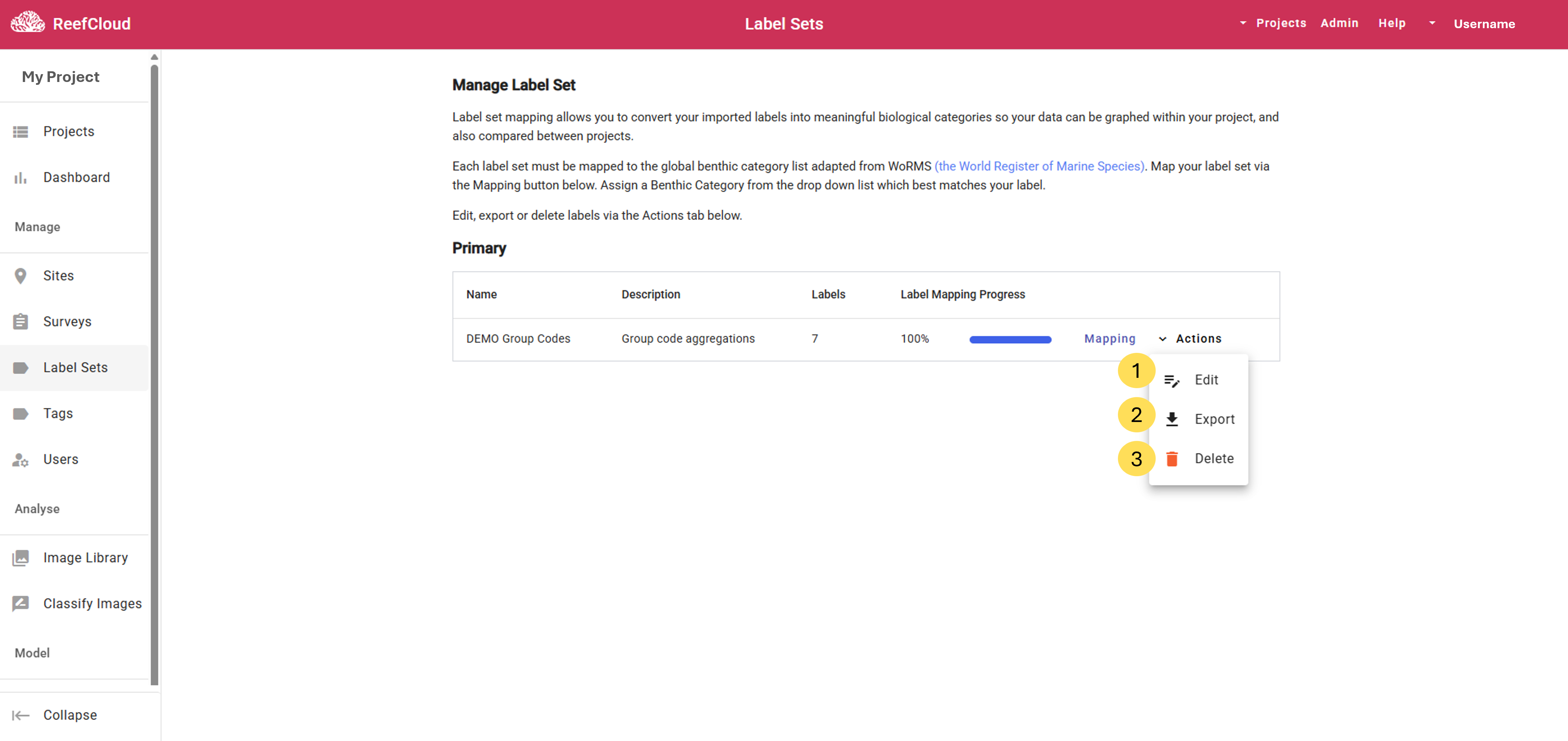
You may wish to edit, export or delete labels within your Label Set. This feature has proved particularly useful for re-analysing photos when taxonomy changes occur! Managing your Label Set can be done within a Project under the Label Sets tab on the left-hand side menu in the ReefCloud Portal.

  1. View and Edit Label Set via "Edit" under the "Actions" button.

  2. You may also want to Export the Label Set as a .CSV file via the "Actions" button to share your unique Label Set with collaborators or for your records.

  3. Label Sets can also be Deleted via the "Actions" button.

triangle-exclamation
A project Label Set can be easily managed via the Label Sets page.
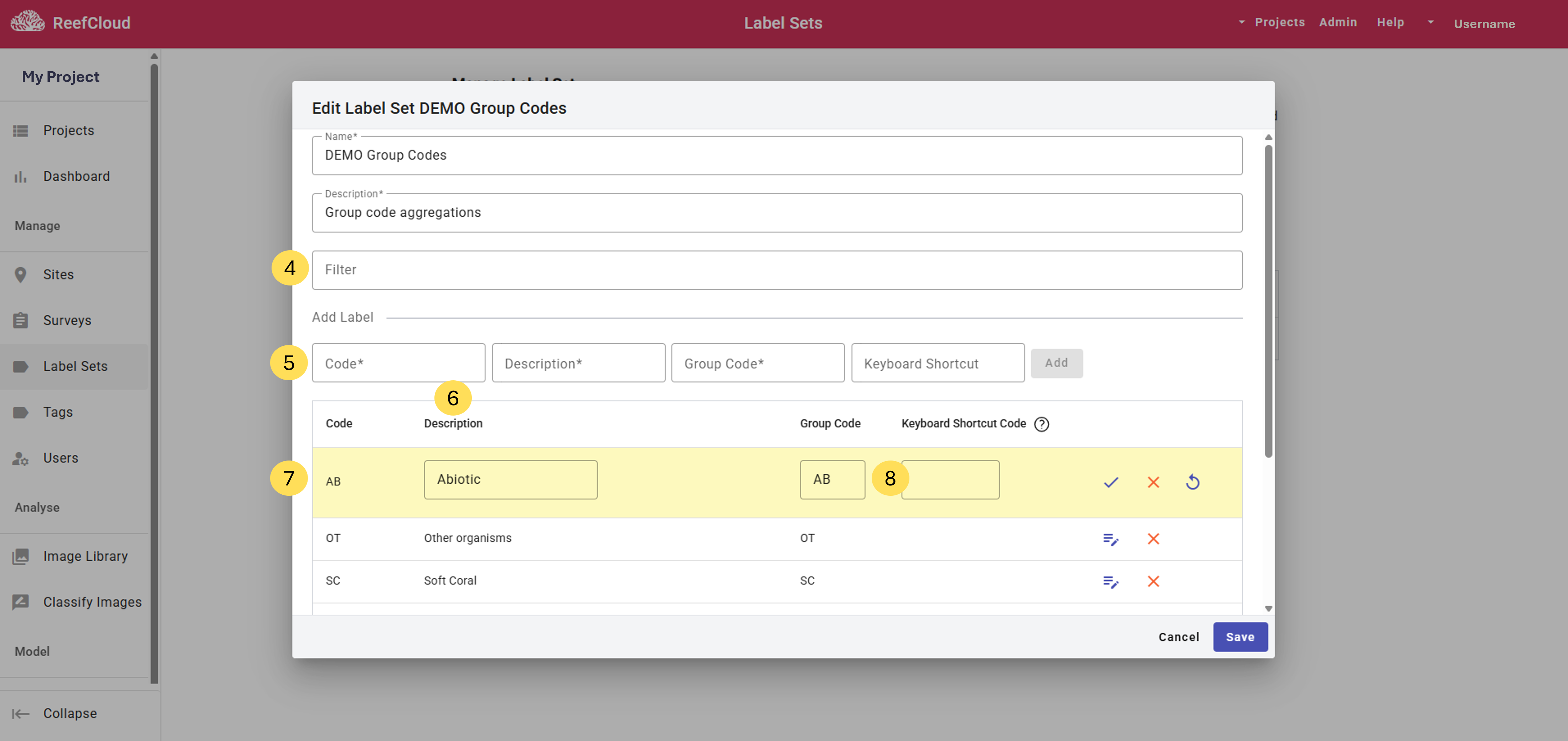
  1. Filter for Label Descriptions or Group Codes to find and edit a given label within the Label Set.

Edit the Label Set via the Actions button.
  1. Add New Labels to the Label Set, possibly a category or taxon which you haven't come across before or didn't think to include in the original Label Set. For a new label, you will need to come up with a unique code that isn't the same as anything already used in your project.

circle-exclamation
  1. Sort Labels using the column headings of the Label Set table. If needed, increase the number of labels viewed per page at the bottom of the scrollable box.

  2. Edit or Delete Existing Labels. Labels are editable apart from the unique code.

triangle-exclamation
  1. Add a Keyboard Shortcut Code (as a numerical character) for labels of benthic taxa that appear frequently when annotating. Shortcut codes are optional.

Short video tutorial on how to manage and map a Label Set in the ReefCloud Portal.

Mapping your Label Set

Label Set mapping is a crucial step that all ReefCloud users are encouraged to do. Mapping converts your imported labels into biological categories that are meaningful to ReefCloud, so your data can be graphed within your Project and compared between Projects (if you have opted to share your result summaries within the ReefCloud Public Dashboard).

Visualisation of data within the Portal allows the user to validate AI point annotations based on how well the machine has been trained. The human versus machine comparisons are displayed on the Portal Dashboard for hard coral, as well as the Model Report page. Project data is aggregated into 13 major benthic groups and displayed under the ‘Site Validation’ tab of the Model Report, as both a direct comparison of cover estimates as well as the error margin between human and machine annotations for each benthic group.

circle-info

Note that the Project Dashboard and Model Report summaries will ONLY appear once a label set has been fully mapped.

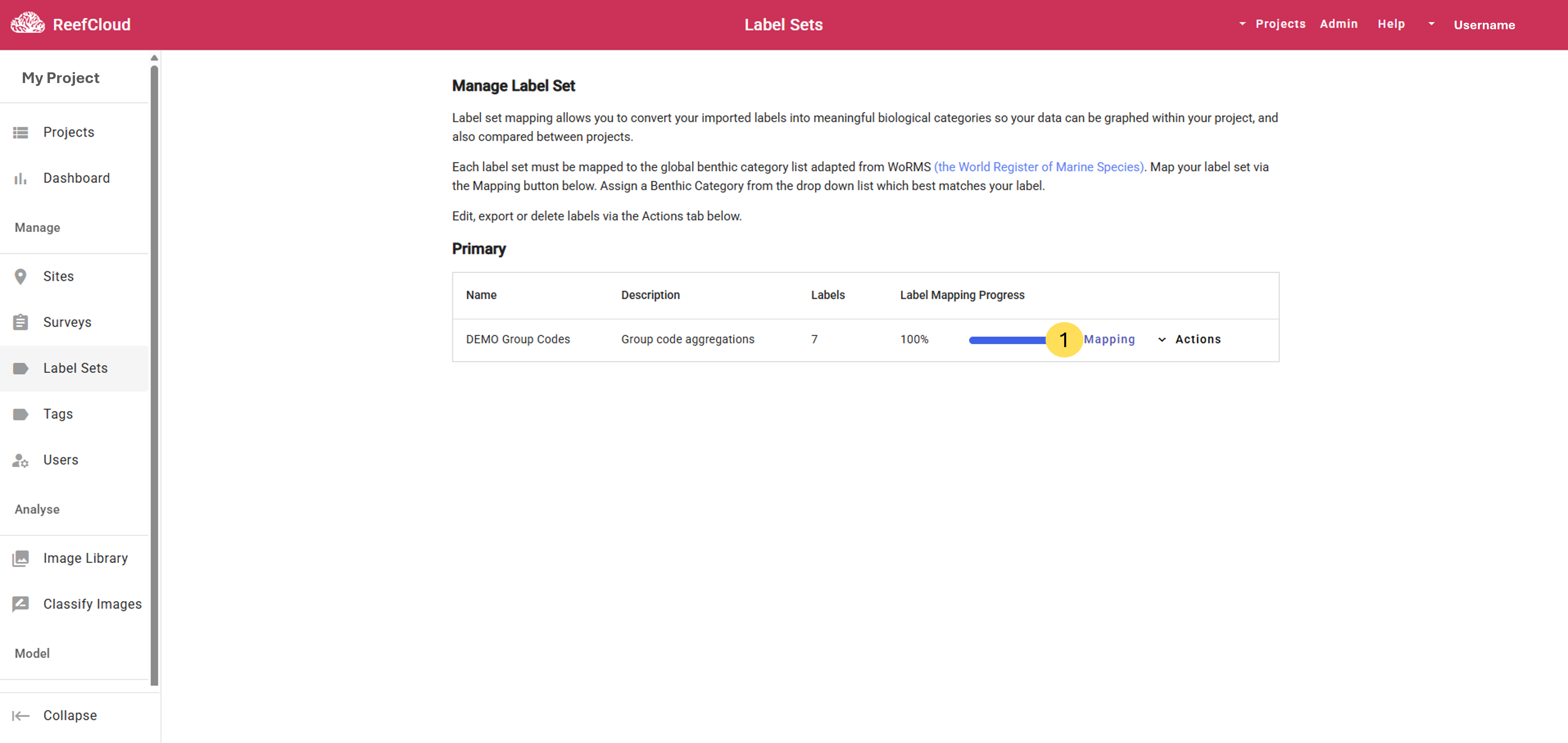
  1. To complete Label Set mapping, on the Label Sets page, click "Mapping".

Map labels to the global standard using the Mapping tool.
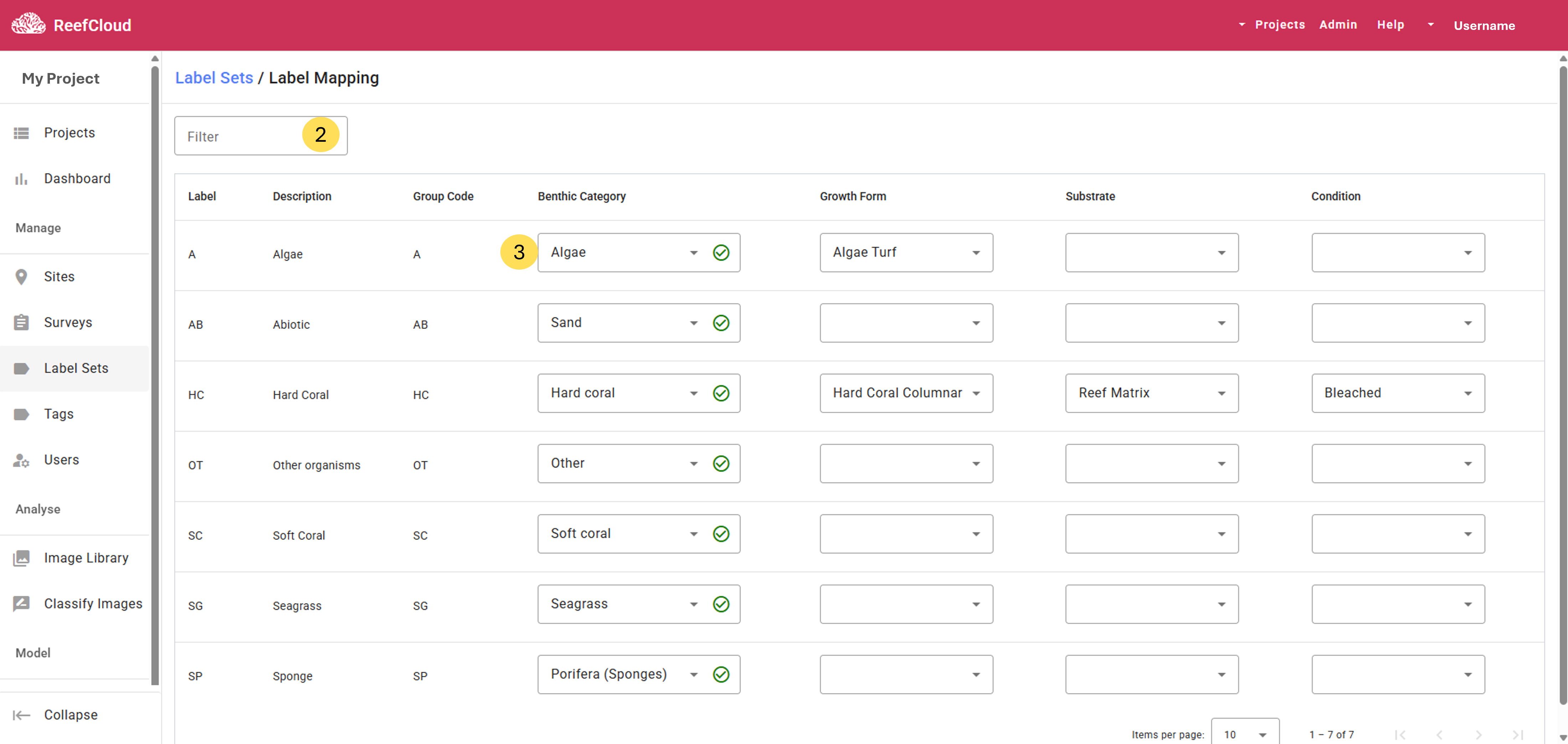
  1. Filter for Labels using the searchable filter at the top of the page.

  2. Choose a "Benthic Category" from the dropdown list for each Label that is the closest taxonomic match to what you are annotating. The Benthic Category list has been adapted from the World Register of Marine Speciesarrow-up-right (WoRMS) with relevant abiotic categories included for completeness. You will need to choose a benthic category that best fits your label for every single label in your Label Set to make use of the AI validation and reporting tools, as well as to contribute your data (if you have opted to share summary data) to regional and global trends analysis.

circle-info

If you are using one of the AIMS Template Label Sets, the benthic mapping has already been done for you, and will only need to be updated if you add new labels to the Label Set within your Project.

Mapping your Label Set so that ReefCloud can understand and make use of your data for synthesis is an essential step!
circle-check

Last updated

Was this helpful?