Quality control
A guide to using the "QC" tool in the Classifier
In ReefCloud, the performance of the model depends directly on the quality of human annotations it learns from. The machine learning model is trained using human annotatable points from across a project in which both a number of users may contribute to training. Ensuring annotations are consistent and correct across a team and through time are essential.
Quality Control (QC) is a standard step in many data management workflows, and in the pipeline to train a ML model, this step allows for improvement model performance as well as catching annotation errors and inconsistencies before they affect downstream analysis. This process not only improves the reliability of current datasets but also enhances the machine learning performance over time. QC should be a standard step in most data management workflows, and particularly in collaborative ReefCloud projects where multiple users are contributing annotations to train a model.
As a standard guideline, users should aim to review and verify at least 5–10% of human annotations made following a period of classifying images. This should allow users an opportunity to confirm that the training provided to the machine is reliable and consistent, or calibrate classification of a particular label or group code.
Note: QC can only be performed by a user other than the original annotator of the image. A user cannot perform QC on their own annotations.
Accessing the QC tool
You can access the QC tool via the "Classify Images" page
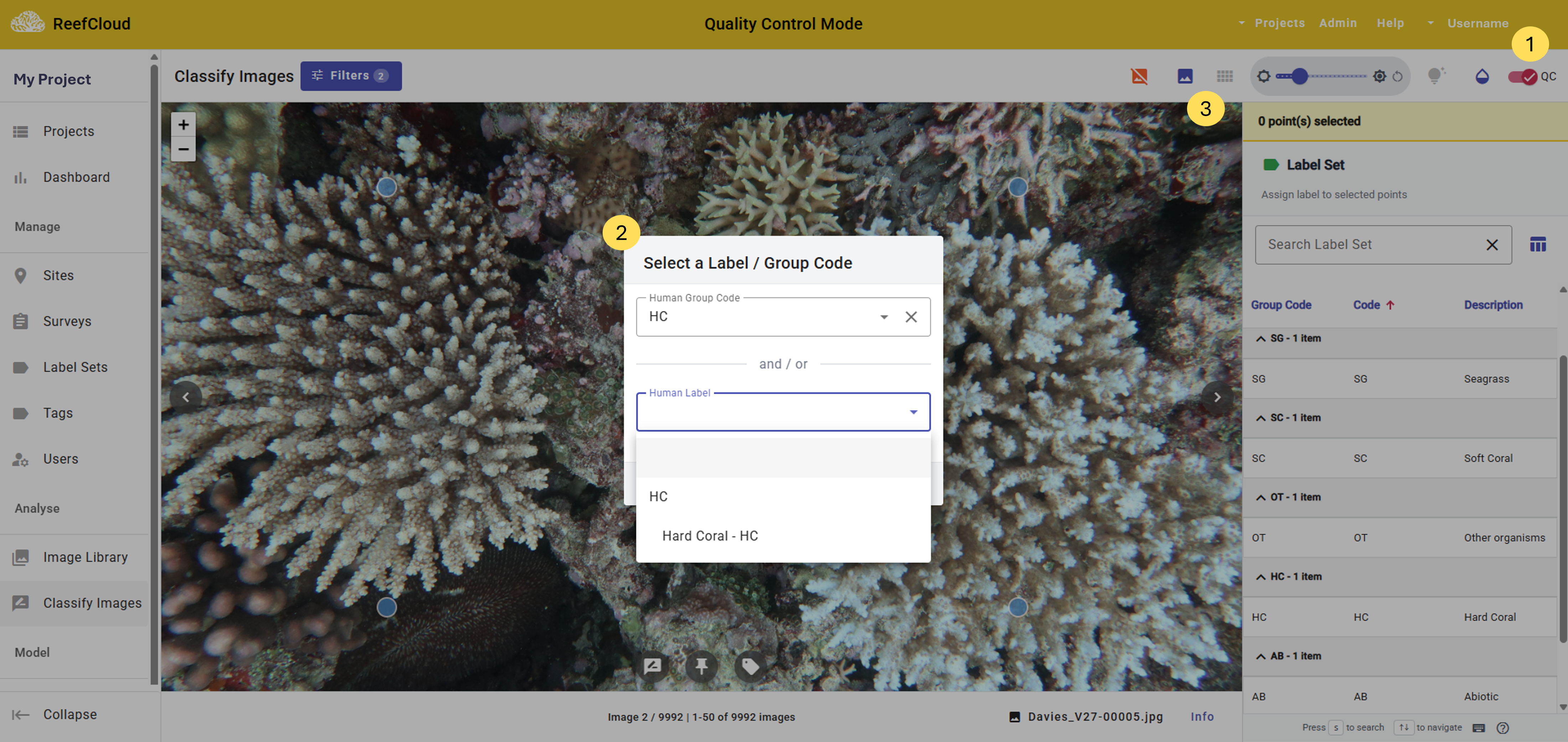
Toggle the "QC" button on/off at the top right hand of the page, enabling Quality Control mode. Note that the page header will change from pink to yellow, highlighting the fact you are now reviewing annotated points and not providing original annotations.
Select a human group code or label that you want to review. This will bring up all annotations across the project. Alternatively, use the "Filters" for more targeted review of a given site, survey, time period, observer, or local region.
Choose viewing mode by clicking either:
Full image view to see annotations across an entire image, or
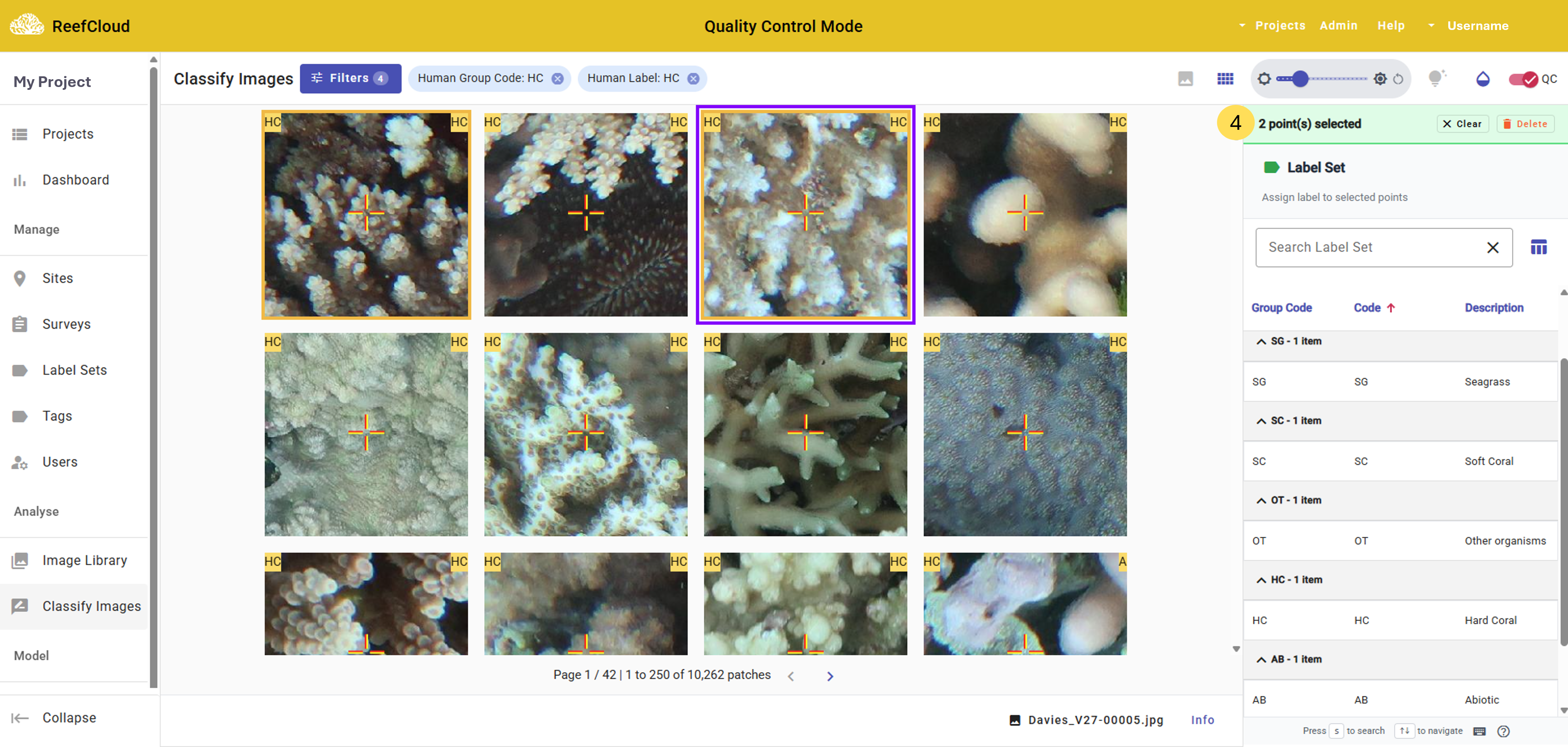
Point view to view individual annotation points in a grid format.

Using the QC tool
From here the QC tool works in a similar way to the Classifier.
Select a given point or multiple points you wish to quality check (either in full image or point view). Selected points will be highlighted yellow, and the number of selected points will be displayed in green at the top of the panel on the right.

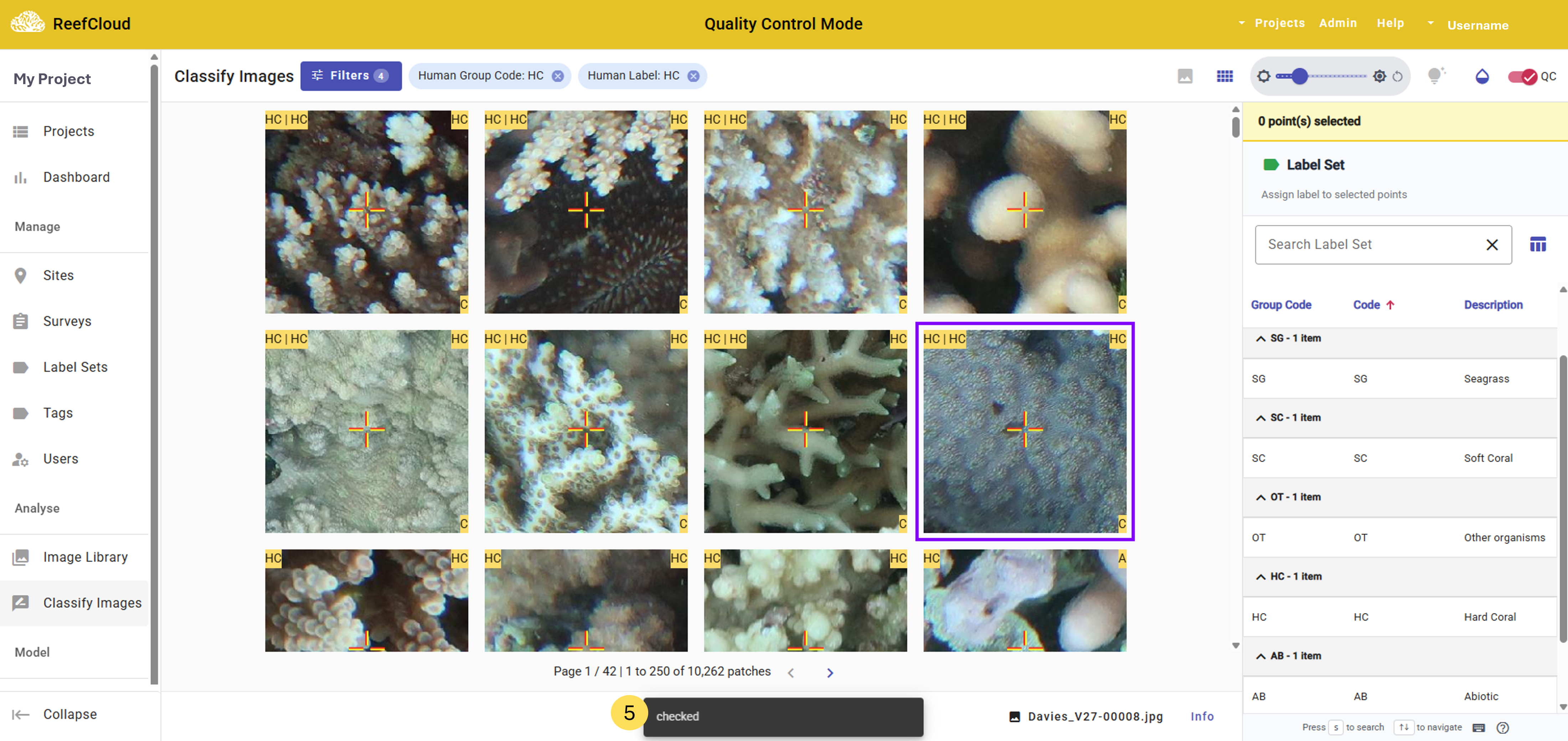
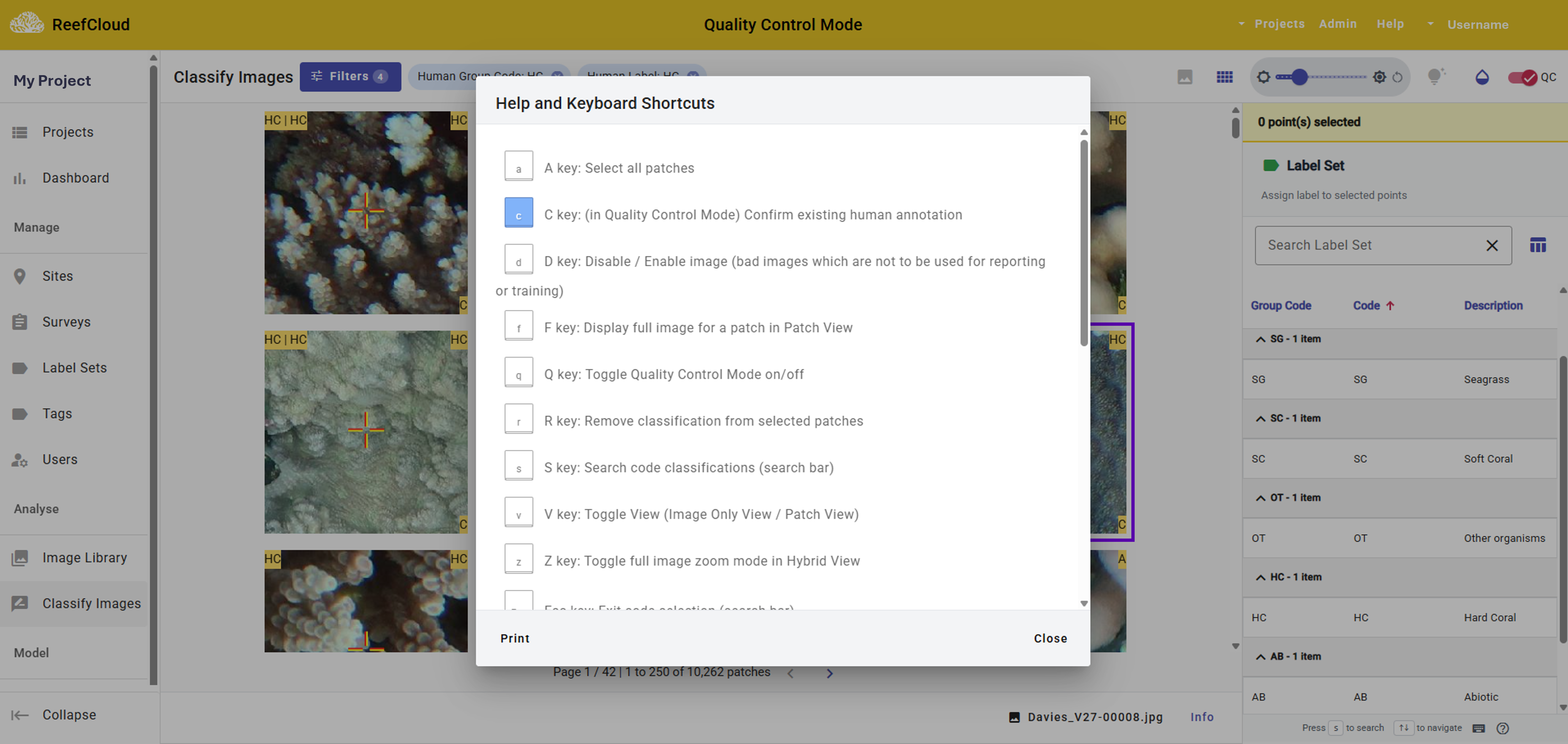
Confirm annotations selected if you agree that the annotation made is correct. To confirm a point is correctly annotated, select the point and use the shortcut "C" key on your keyboard. You will note that a "Checked" alert appears at the bottom of your screen, and the points confirmed will then show a "C" in the bottom right corner of each patch in point view mode.

All points that undergo QC are used to train the model further enhancing model performance and accuracy as well as reducing mislabelling across a project and within teams in the future. These QC annotations can be found with other point data in the "Point Classifications" CSV file when exported from the Project Dashboard of a given project.
Oh no, I made a mistake while quality checking! Do not worry - simply selecting the point and clicking the "Delete" icon within the panel on the right will remove the QC classification (but not impact the original annotation) from the selected point(s).
Remember, all keyboard shortcuts can be seen via the
button at the bottom right of the screen.

Last updated
Was this helpful?