> For the complete documentation index, see [llms.txt](https://docs.reefcloud.ai/llms.txt). Markdown versions of documentation pages are available by appending `.md` to page URLs; this page is available as [Markdown](https://docs.reefcloud.ai/train-and-validate-ai/tag-management.md).
# Tag management
Guide to using the "Tags" page
Tags in ReefCloud are flexible and user-defined metadata that can be applied to individual Human Annotatable Points (or in the case of something not lying under a point, tagging the Whole Image). Unlike labels used in classification of Human Annotatable Points to train the AI model, tags in ReefCloud do not contribute to machine learning. Instead, they provide additional context to assist with organising, filtering, and managing data based on observational or environmental characteristics. This may include bleaching severity, presence of disease, noting rare taxa, or to 'bookmark' a point to review with collaborators at a later time.
### **Creating and Editing Tags**
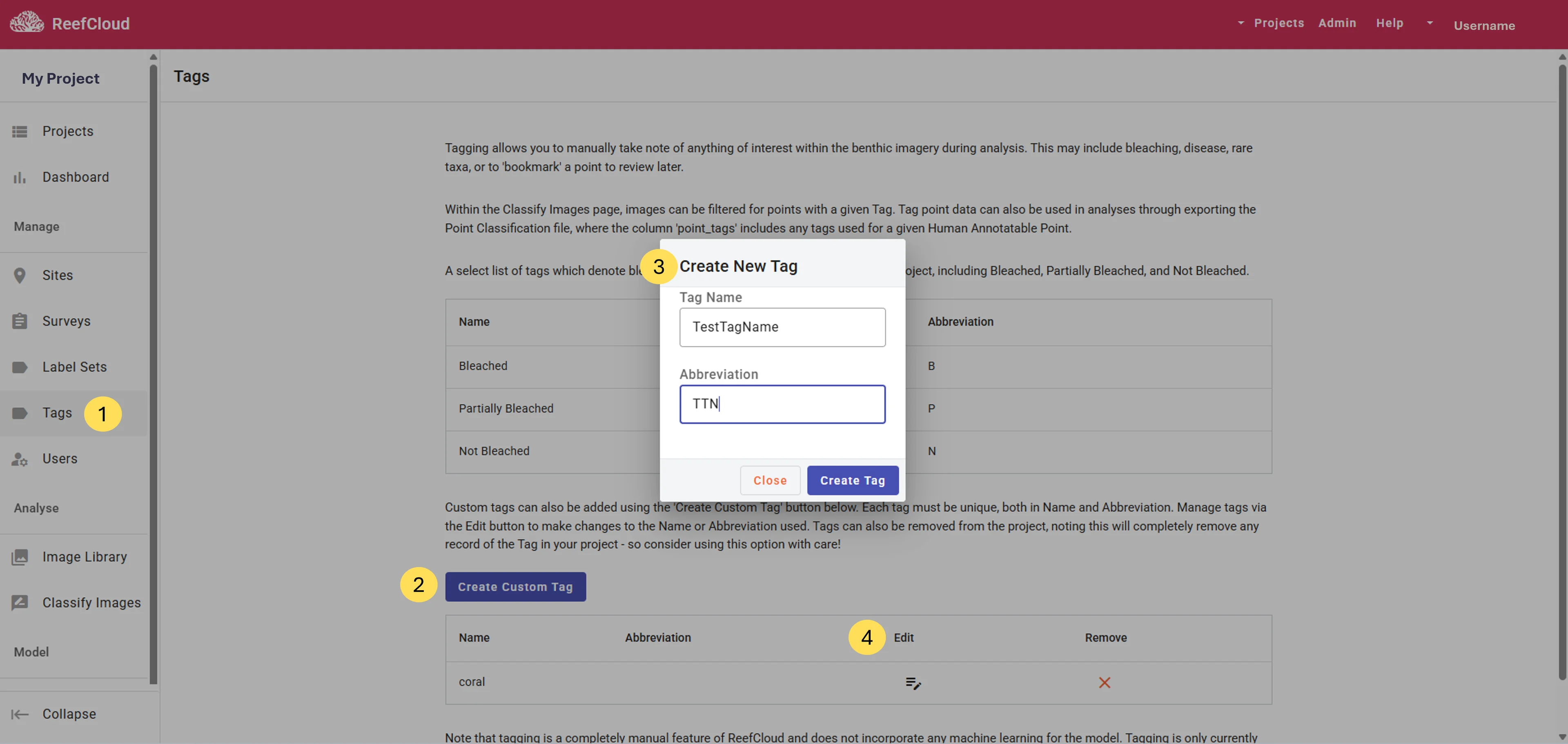
1. Navigate to the **Tags** page within your project.
2. Click the "**Create Custom Tag**" button.
3. Enter a descriptive Tag Name (e.g., 'diseased', 'review later'). Each tag you create must have a unique **Tag Name** and **Abbreviation** (using three letters).
4. Tags can be edited or removed at any time via the Tags page. Simply use the "**Edit**" button to modify or "Remove" to delete existing tags.
Tag management
{% hint style="success" %}
### **Benefits of using the Tag function in ReefCloud**
* Add contextual detail without modifying the classification structure or model.
* Enable temporary or project-specific categorisation to aid in collaborating on a ReefCloud project or managing data later.
* Enhance efficiency when navigating and interpreting large and complex datasets.
* Support more targeted data analysis and reporting.
{% endhint %}
### **Applying Tags to Human Annotatable Points**
Once you have created a descriptive tag, navigate to the Classifier within your project. Tags can be used for both whole *Images* and for *Points*!
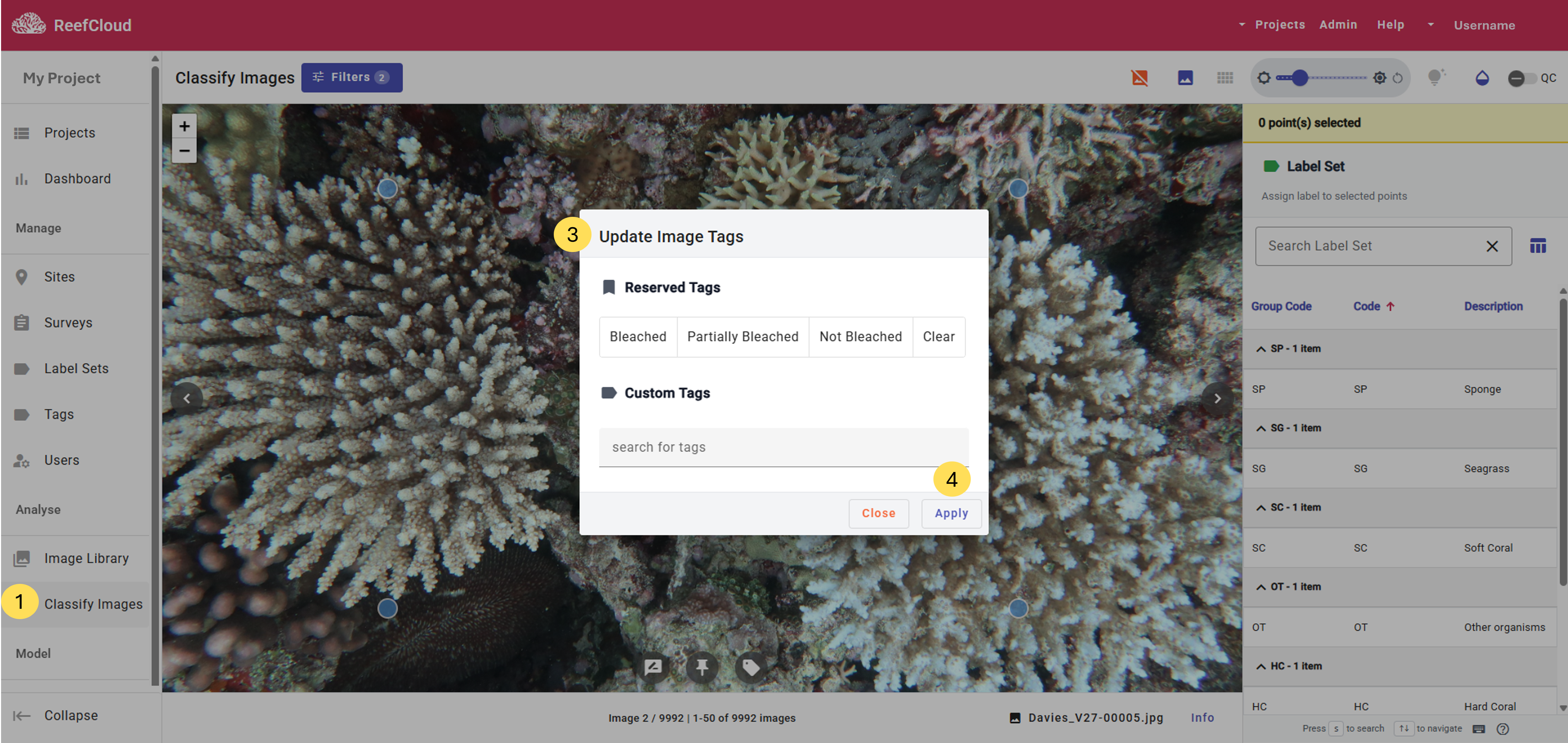
1. Navigate to the "**Classify Images**" page within your project.
2. Whether in Full Image View or Points View, use the **shortcut "****T****"** to display the tagging interface.
3. **Select the relevant tag(s)** for the image (in Full Image View) or selected points (in Patch View).
{% hint style="info" %}
Multiple tags can be applied to the same image or point, including both reserved tags provided by ReefCloud and any custom tags defined in the project Tags page.
{% endhint %}
4. Click the "**Apply**" button to finalise tagging.